Sending Custom File Contracts
This page will provide step-by-step instructions for sending custom file contracts in Site Specs.
Overview
Site Specs offers a contract template module where companies can customize and maintain their custom library of contract templates for any agreement type (i.e. subcontract, supplier agreements, trucking agreements, etc.). However, we also allow users to upload any contract file they may have produced in some other software application like Microsoft, text/pdf file editor, or scanned document. We refer to these as 'Custom Files'.
Although we highly recommend using the contract templates to generate your contracts as they are specifically suited for contracting, they capture much more granular contract data for your analysis, and allow your legal department to maintain and update your contract verbiage in a single place, we understand that every company is different and there are instances where companies have contracts generated from other systems. Our Custom File feature allows users to upload these files and create contract records within projects' contracts tab.
Custom files can be useful in the following instances:
- You sent a contract for digital signature, but the vendor returned a signed hard copy. In which case you can upload a scan of the hard copy as a custom file to get it logged into the system.
- Your project requires custom formatting that falls outside Site Specs capabilities.
- Your company's standard operating procedure generates your contracts in some 3rd party application.
- You are working with a JV and the contract generation falls under your JV partner's administrative responsibility.
Below we will explain how the process works.
Steps
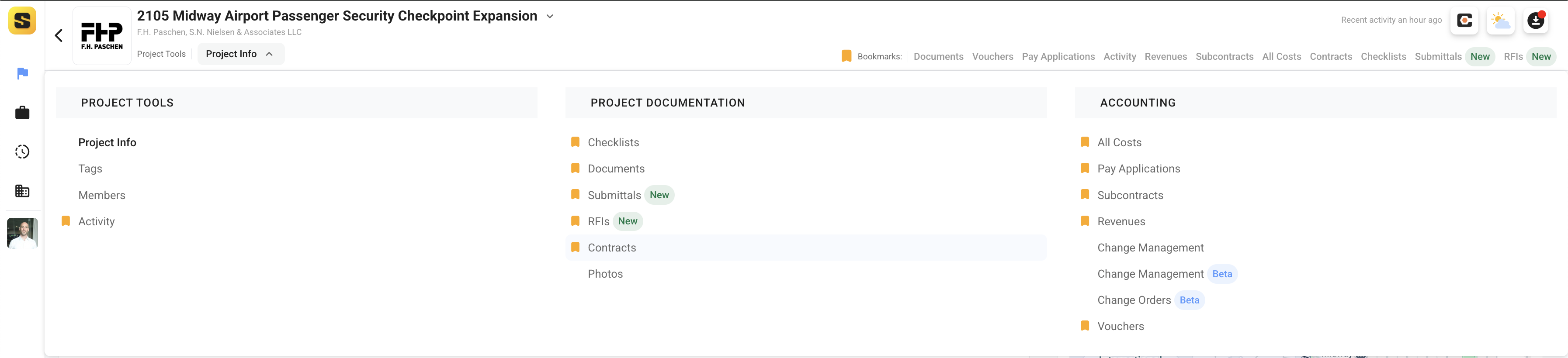
In the project, navigate to the 'Contracts' page using the project navigation menu.
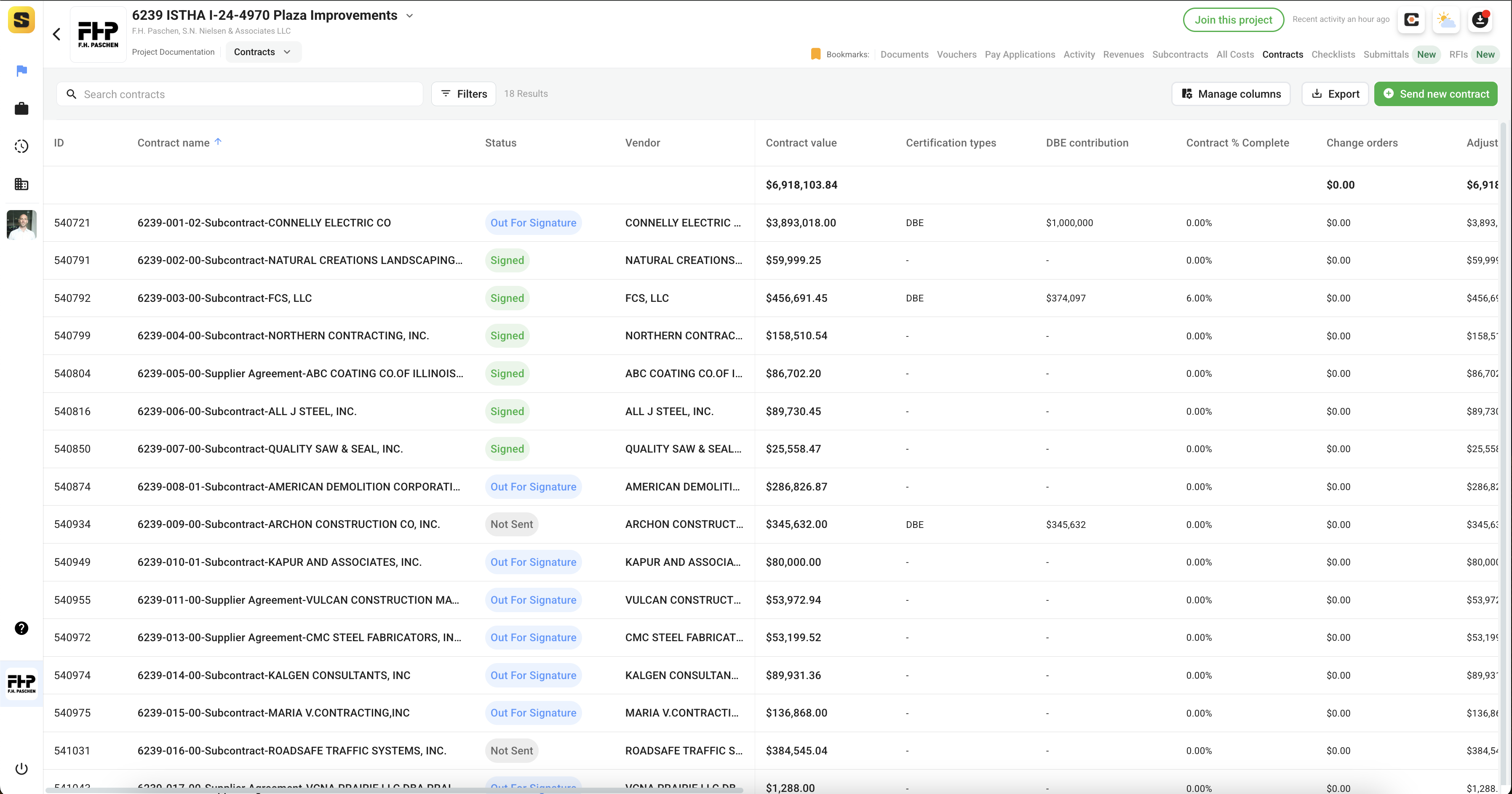
Users will see a list of generated vendor contract agreements with their current status.
To send a new contract click the 'Send New Contract' button on the top right of the Contracts page.
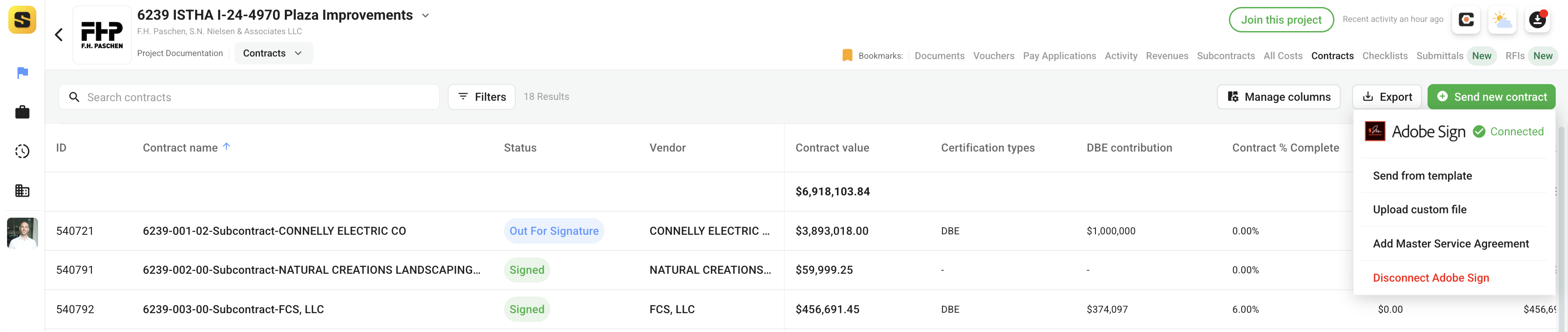
Select 'Upload Custom File' from the Send Contract menu.
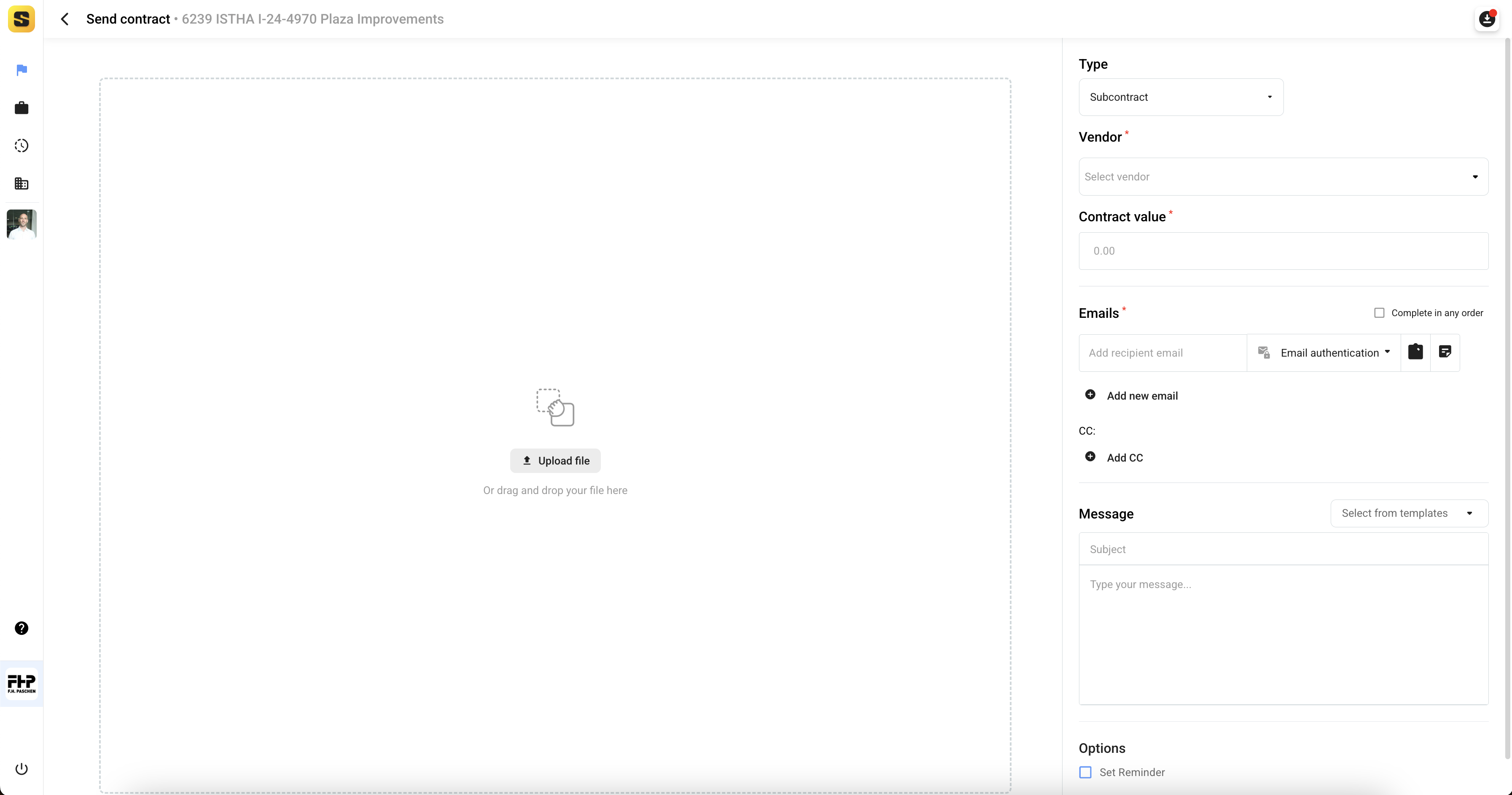
You will see our custom file contract send form. The first step to completing the form is to attach your contract document by drag/drop the file on the document preview window OR clicking the 'Upload file' button to browse your computer for the file.
Once your file is uploaded, you will notice the document icon will appear in the preview window. You can upload as many documents as you would like in the order you want the files stitched together. Site Specs accepts the following document types:
- Word (.DOC .DOCX)
- Excel (.XLS .XLSX)
You will also notice the name of the first file you upload will automatically populate the message subject line that will display in the email to the vendor (ONLY if Adobe Sign is used).
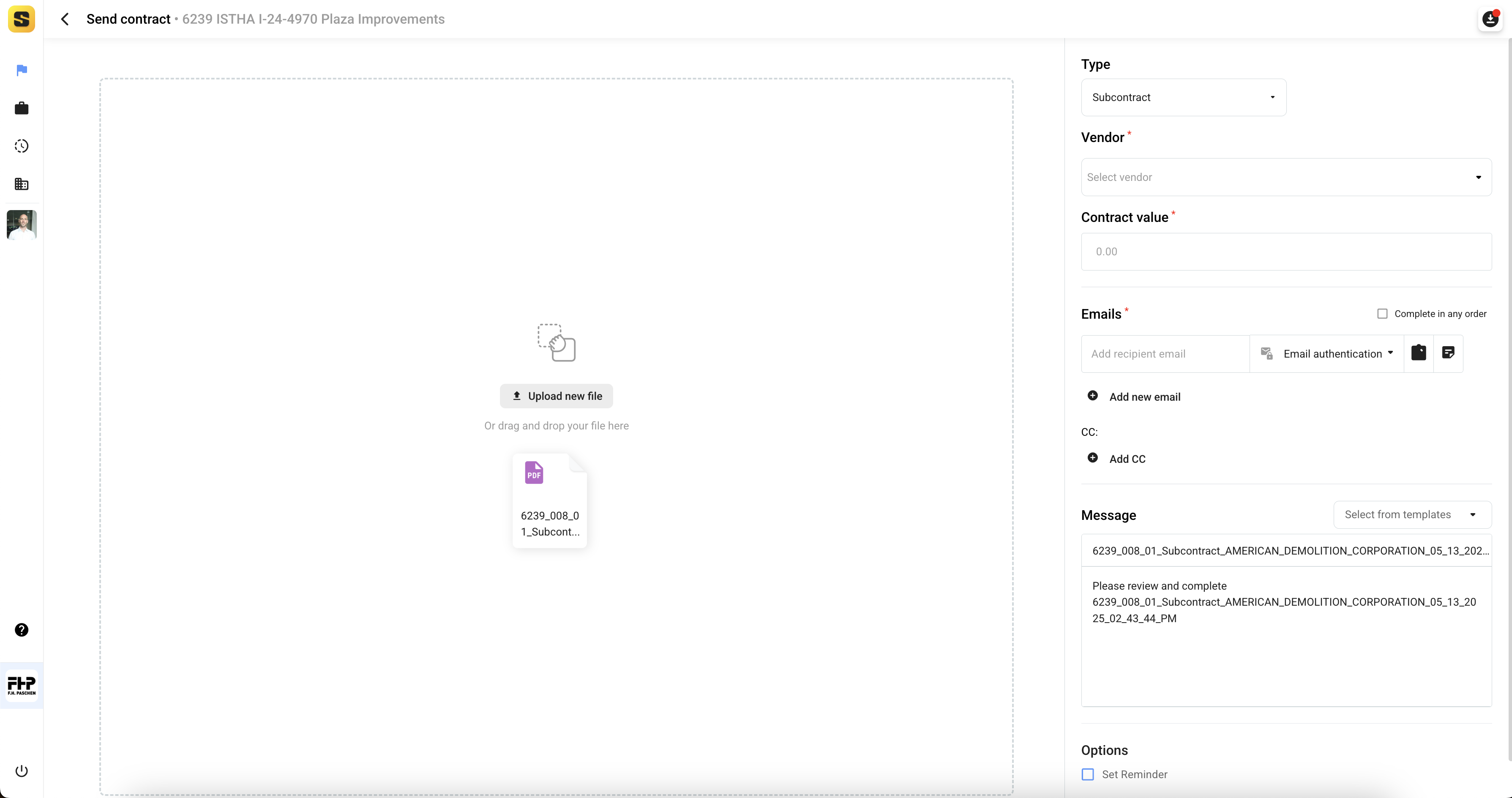
The next step is to complete the custom file contract form on the left side panel beside the document preview window shown below.
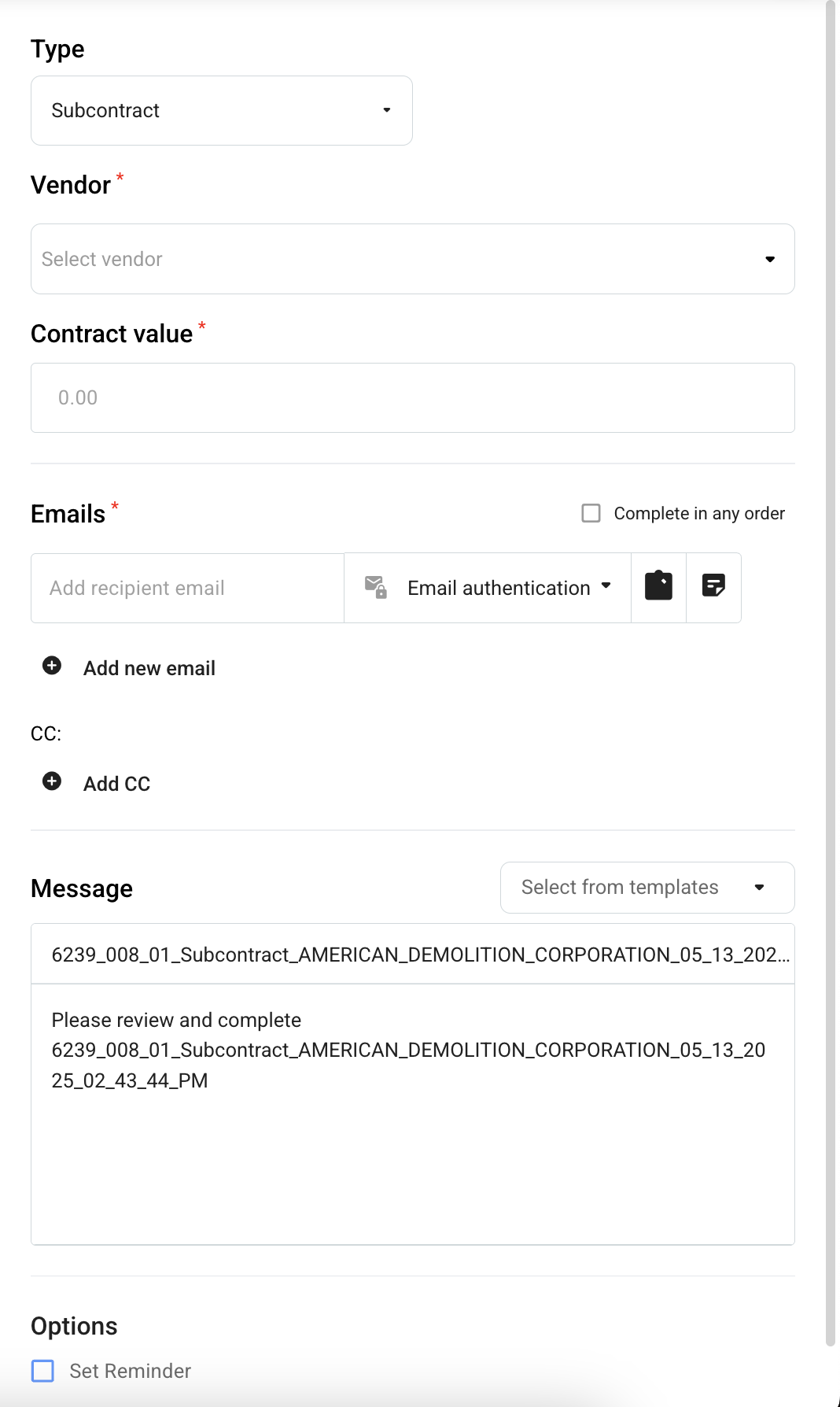
The first dropdown menu is agreement 'Type'.
Site Specs Contract Agreement Types
- Subcontract - Typical subcontract for labor and material
- Change Order - Change order to a subcontract or supplier agreement
- Subsecure - Subcontractor insurance
- Supplier Agreement - Typical contract for material supply only
- Other - Any other document/agreement you might send for signature (i.e. insurance cert)
- Professional Services Agreement - Consulting services like layout/surveying
- Master Vendor Services Agreement - These are agreements companies make with suppliers for fixed rates they agree upon for services and materials that may apply to many projects. These are typically not project specific and are managed separately than typical agreements (contact Support@SiteSpecs.io for more info on how to utilize these).
- Trucking Agreement - Agreements for trucking services
NOTE: If your company would like to add or modify this list, please contact Site Specs Support at Support@SiteSpecs.io
The next field is 'Vendor'. This list is from your My Company -> Vendor database.
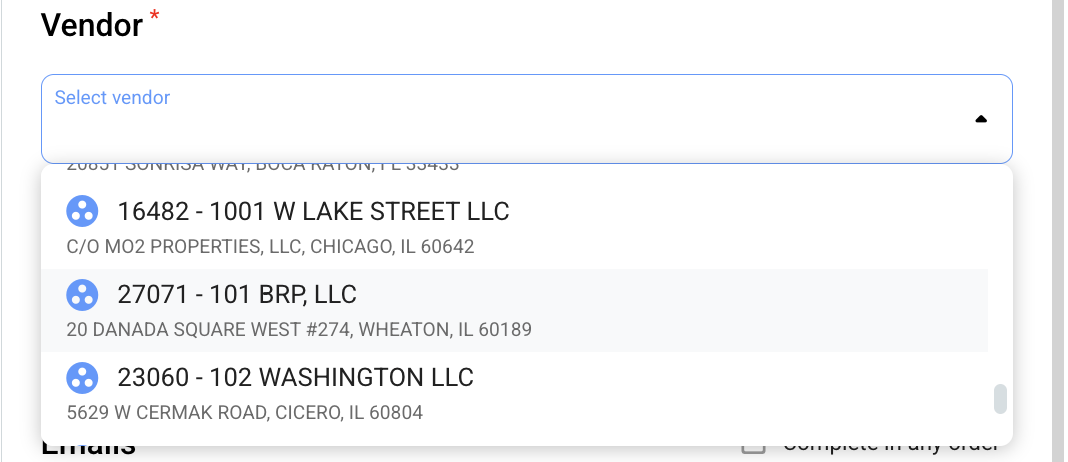
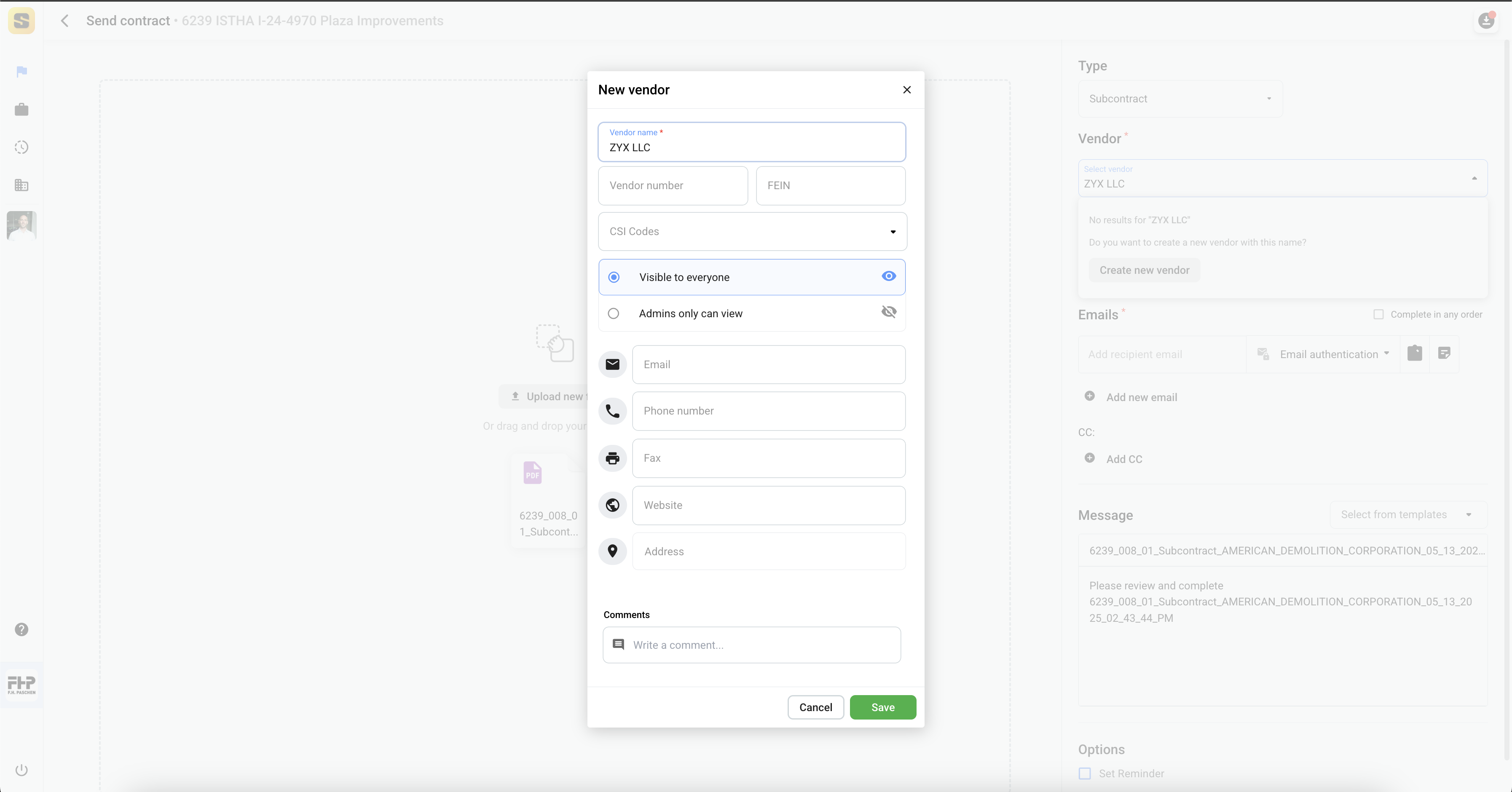
If you have not already setup the vendor profile in your company's vendor database you can create vendors on the fly by typing the new vendor's name and clicking '
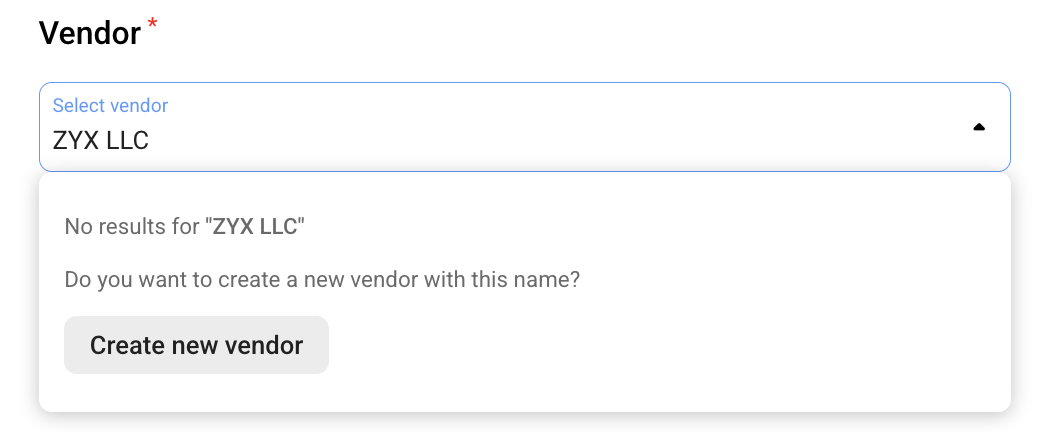
You will see the 'Create new Vendor' form where you can input the information for the new vendor's profile.
The next field is the 'Contract Value'. This should be the total value of the contract (base bid). In the case of a Change Order agreement type, this should be the +/- value of the change (NOT the revised or new contract total with the change).
'Emails' are the emails of the 'Signers' of the contract (ONLY if using Adobe Sign for digital signature). If you want to have the Signers execute the contract in the order you have them on this form, leave the 'CComplete in any order' box UNCHECKED.
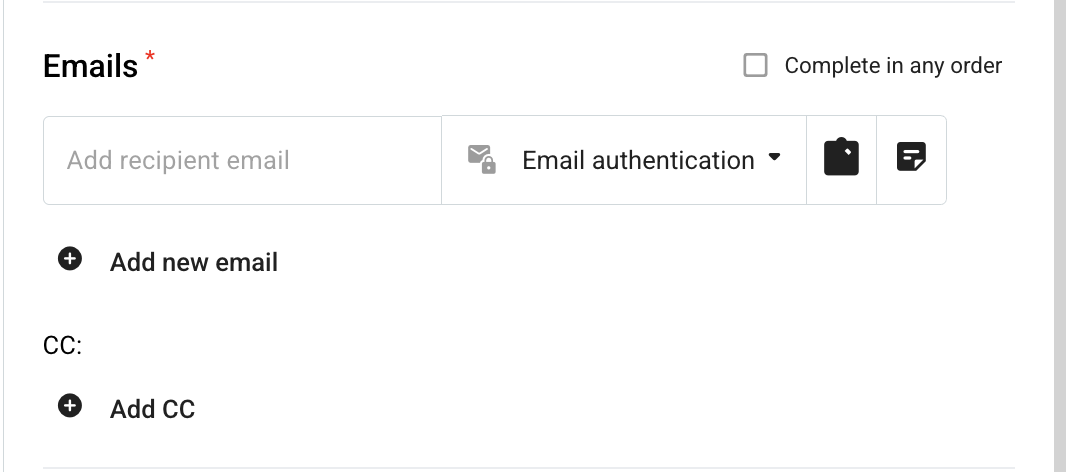
There are some Adobe Sign additional settings you can opt to utilize for each 'Signer'.
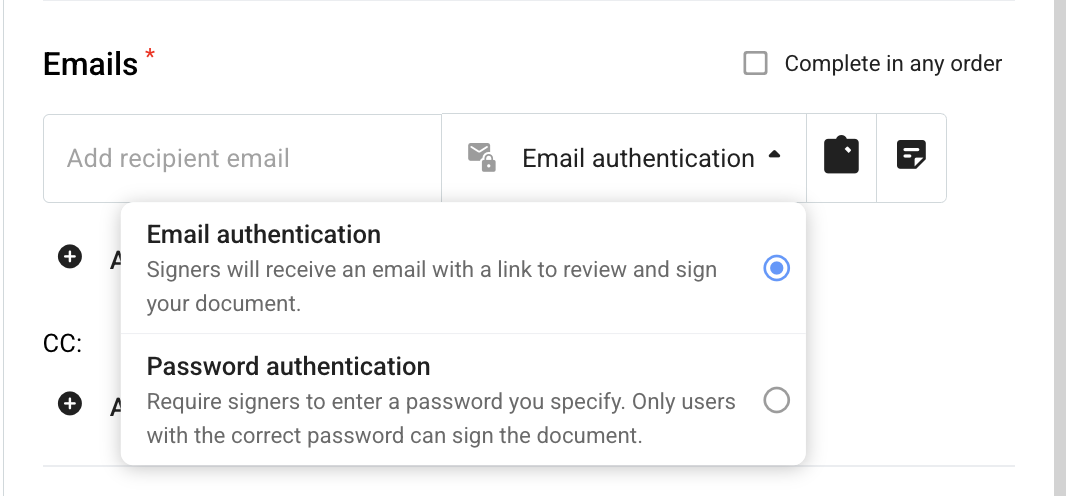
- Email Authentication setting can be:
- Email Authentication - User receives an email and the link in the email accesses the Adobe Sign file to sign. This email link can be forwarded.
- Password Authentication - User sender designates a private password used to authenticate the signer before signing the contract. This private password must be securely shared with the signer from the sender who is completing this form.
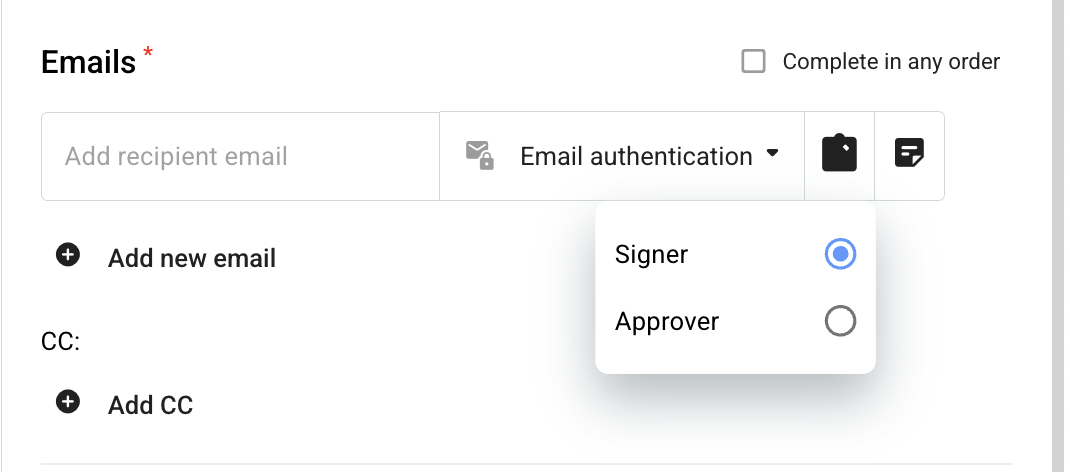
- Reviewer Type can be:
- Signer - Executor of the contract.
- Approver - Simply approves the version of the contract. Ofter Approvers are internal company members who approve the final version of the contract before Signers execute the contract.
- Private messages are optional and only that individula Signer/Approver will see that private message in their email notification.
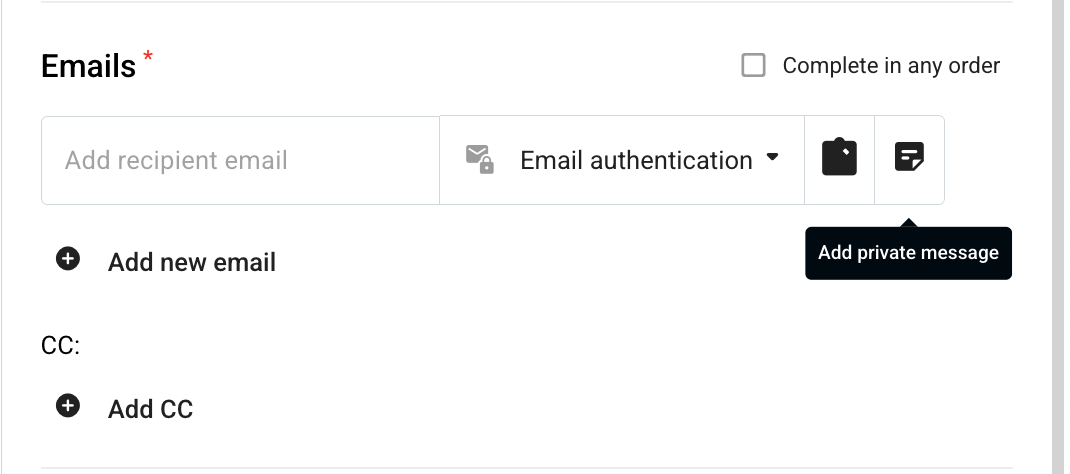
The 'CC' email field is any user you want to receive the fully executed contract after all signers have executed the contract.
The 'Message' section is the message included in the email to all reviewers (Approvers and Signers). These message templates are from your company's Adobe Sign account. You can create and save new custom messages in Site Specs and save them to your company's Adobe Sign account.
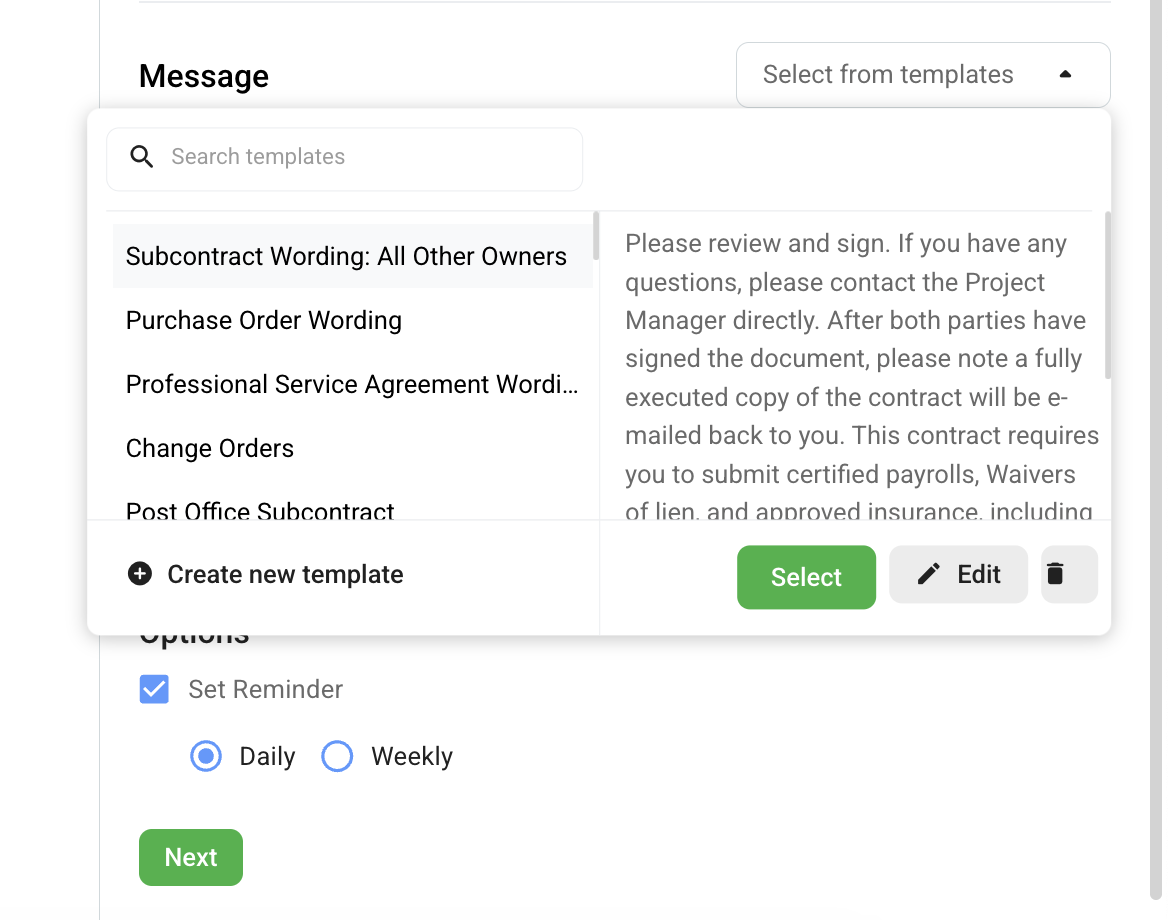
Lastly, you can set reminders to automatically ping and remind reviewers that the contract agreement is awaiting their review if the ball is still in their court. This can be daily or weekly.
Things to Consider
- If your company does NOT have an Adobe Sign account you will not see the fields besides the 'Type', 'Vendor', and 'Contract Value'.
- Companies may have different Adobe Sign document size limitations depending on their company license with Adobe Sign. Please consult Adobe Sign support if you run into document size limits when sending Custom Files for signature.
Issues or Questions?
Contact Support at Support@SiteSpecs.io if your issue is Site Specs related. If your issue is Adobe Sign related please contact your account contact with Adobe Sign.